The answer might scare you. Most photographers start with a simple pricing model: look at what the competitors are charging, and charge slightly less. It feels safe. It feels logical.
But from a business perspective, it is suicide.
The Hidden Costs of a “Simple” Shoot
Let’s say you charge $300 for a 2-hour portrait session. That sounds like $150 per hour—a fantastic wage, right? Wrong.
Admin: Invoicing, backing up files, marketing (1 hour).
Suddenly, that 2-hour shoot is actually 8 hours of work. Your $150/hour just dropped to $37.50/hour.
And We Haven’t Even Touched Taxes
Depending on where you live, taxes and social fees will eat roughly 30-50% of that gross income. Now you are down to roughly $20/hour.
Still sounds okay? Well, did you pay for your camera? Your Adobe subscription? Your website hosting? Your insurance?
Stop Guessing. Start Calculating.
This isn’t meant to discourage you. It is meant to empower you. The moment you treat photography as a business based on data, not feelings, is the moment you become profitable.
You don’t need to charge what “everyone else” is charging. You need to charge what you need to survive.
We built a tool specifically for this. Before you send your next quote, run your numbers through our Rate Calculator on the home page. It takes 30 seconds, and it might just save your business.[Button: Go to Calculator] (Länka denna knapp till startsidan)
If you are anything like me, you probably love the shooting part of photography way more than the organizing part.
There is a specific kind of joy in capturing the perfect light, but a particular kind of dread in opening a Lightroom catalog that has become a digital junk drawer.
We have all been there.
You search for “Nature”, but half your shots are tagged “Landscape”, some are under “Outdoors”, and a few rogue ones are simply tagged “Trees”.
Before AI, fixing this meant hours of scrolling and guessing in the quite clunky UI of Lightroom.
But recently, I discovered a workflow that uses AI to act as a professional “Digital Asset Manager” for your archive.
Instead of letting an algorithm blindly mess with your database, you can use it to audit your structure and give you a precise to-do list for fixing it yourself.
Here is how you can use tools like ChatGPT, Gemini, or Claude to analyze your Lightroom keyword hierarchy and spot the mess you’ve stopped noticing.
The Problem: Why Our Catalogs Rot
Metadata is the backbone of a searchable image archive.
Without it, your photos might as well not exist once they leave your “Recently Added” folder.
The issue isn’t that we don’t keyword; it’s that we are inconsistent.
Over time, maintaining a consistent keyword hierarchy becomes exponentially more difficult.
You might tag a photo Travel > Europe > France one year, and just France the next.
This creates “split hierarchies” and, with that, confusion that makes finding that one specific shot impossible.
The Solution: The AI Audit
You don’t need to buy expensive plugins.
You just need your existing Lightroom data and an LLM (Large Language Model).
The strategy is simple: export your messy keyword structure, let the AI critique it, and use its report to manually refine your catalog.
Here is the step-by-step workflow.
Step 1: Get Your Data Out of Lightroom
First, the AI needs to see your current structure.
Lightroom Classic makes this surprisingly easy because it can export your entire keyword tree as a plain text file.
Open Lightroom Classic and go to the Library module.
In the top menu, navigate to Metadata > Export Keywords...
Save the file as lightroom_keywords.txt to your desktop.
Crucial Note: If you open this file, you will see tab indentations. These tabs represent the parent/child relationships. Do not edit this spacing manually, as the AI needs it to understand the hierarchical structure.
Step 2: The “Consultant” Prompt
This is where most people get it wrong.
Instead of pasting thousands of lines of text into the chat box (which can break the formatting or hit character limits), you should simply upload the text file you just created as an attachment to the prompt.
We are going to ask the AI to act as a consultant and look for specific issues like inconsistencies, redundancies, and bad logic.
Upload your lightroom_keywords.txt file to the chat and use this prompt:
I am a photographer using Adobe Lightroom Classic.
I have attached a text file containing my current keyword hierarchy,
where indentation represents parent/child relationships.

Please act as a professional Digital Asset Manager and Taxonomy Expert.

Analyze my keyword structure for the following:

Inconsistencies: Identify singular vs. plural
mismatches (e.g., 'Bird' vs. 'Birds').

Redundancies: Find synonymous keywords located in
different parts of the hierarchy.

Categorization Logic: Suggest structural improvements
where specific keywords are categorized under the wrong parent.

Expansion: Suggest 5–10 missing high-level categories
based on the subjects present.

Provide your output as a structured report with actionable bullet points.
Do not rewrite the entire list; first, critique the current state.
Step 3: The Strategy Session
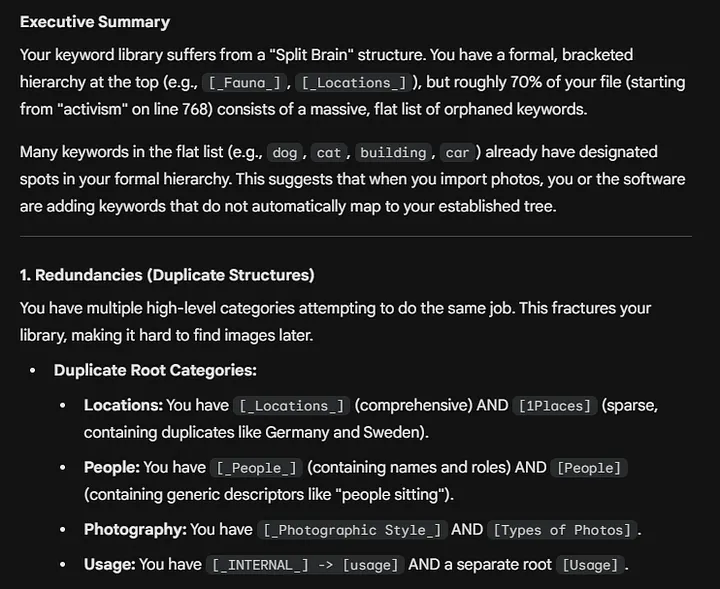
Real output from my own library analysis prompt
The AI will generate a diagnostic report.
This is often an eye-opening moment. It will spot things your brain has learned to ignore, such as:
Split Hierarchies: Realizing you have Locations > Europe > France in one place and Travel > France in another.
Granularity Issues: Mixing specific species of flowers right next to general terms like “Nature”.
Formatting Errors: Inconsistent capitalization.
Instead of feeling overwhelmed by the mess, you now have a prioritized list of issues to fix.
Step 4: Manual Cleanup (The Safe Way)
Some guides suggest importing a rewritten text file back into Lightroom.
I advise against this. It can be risky and often results in duplicate keywords cluttering your list even more.
The safest way is to listen to the AI’s advice but do the work yourself. Here is the reliable “Retag and Delete” method:
Identify the “Bad” Keyword: Let’s say the AI pointed out you have both “Architecture” (Good) and “Buildings” (Bad/Redundant).
Select the Photos: Hover over the “Buildings” keyword in your Keyword List. Click the small arrow that appears to the right of the keyword photo count. This instantly filters your grid to show only photos with this tag. Then, select them all (Cmd/Ctrl + A).
Apply the “Good” Keyword: With the photos still selected, check the box next to the “Architecture” keyword (or drag them onto it).
Remove the “Bad” Keyword: While the photos are still selected, go back to the “Buildings” keyword and uncheck the box next to it. This strips the old tag from your images.
Delete the Empty Keyword: Now that the photo count for “Buildings” is zero, you can safely right-click and delete it from your list.
Repeat this for the inconsistencies the AI found. It might take 20 minutes, but your catalog will be cleaner than it has been in years.
Conclusion
By combining Lightroom’s database with the analytical power of AI, you transform a chaotic list of words into a professional taxonomy.
The goal isn’t to let the AI do the work for you, but to let it show you where the work needs to be done.
This process ensures your images are discoverable, salable, and organized for decades to come.